What it is
Lazy Alarm is a small but stubborn alarm for Windows. Set it for a meeting, a class, a payment or any task. When the time comes, a blinking popup takes over the whole screen, a loud siren plays, and the popup does not go away until you press MARK AS DONE (or snooze it).
It is portable: nothing to install, no administrator rights, no account. Copy the folder, double-click the exe, done.
Who it is for
- Anyone who misses meetings because the reminder hid behind another window.
- People who keep the PC muted and never hear the normal Windows notification.
- Offices that want the same alarm on 20 or 30 computers with one shared folder for updates.
Key features
- Full-screen takeover popup that blinks by priority — Critical red, High orange, Normal blue — and stays above every window.
- No accidental dismiss — the close button, Esc, Alt+F4 and Ctrl+W are blocked while it rings. Only ✓ MARK AS DONE or Snooze end it.
- Forces the sound — unmutes Windows, raises the master volume to 100 % and raises it again every 4 seconds while it rings.
- Per-alarm snooze — on or off for each alarm, with its own duration (1 to 30 minutes). If snooze is off, the popup has no snooze button.
- Repeat — Once · Daily · Weekdays (Sunday to Thursday) · Weekly · Monthly.
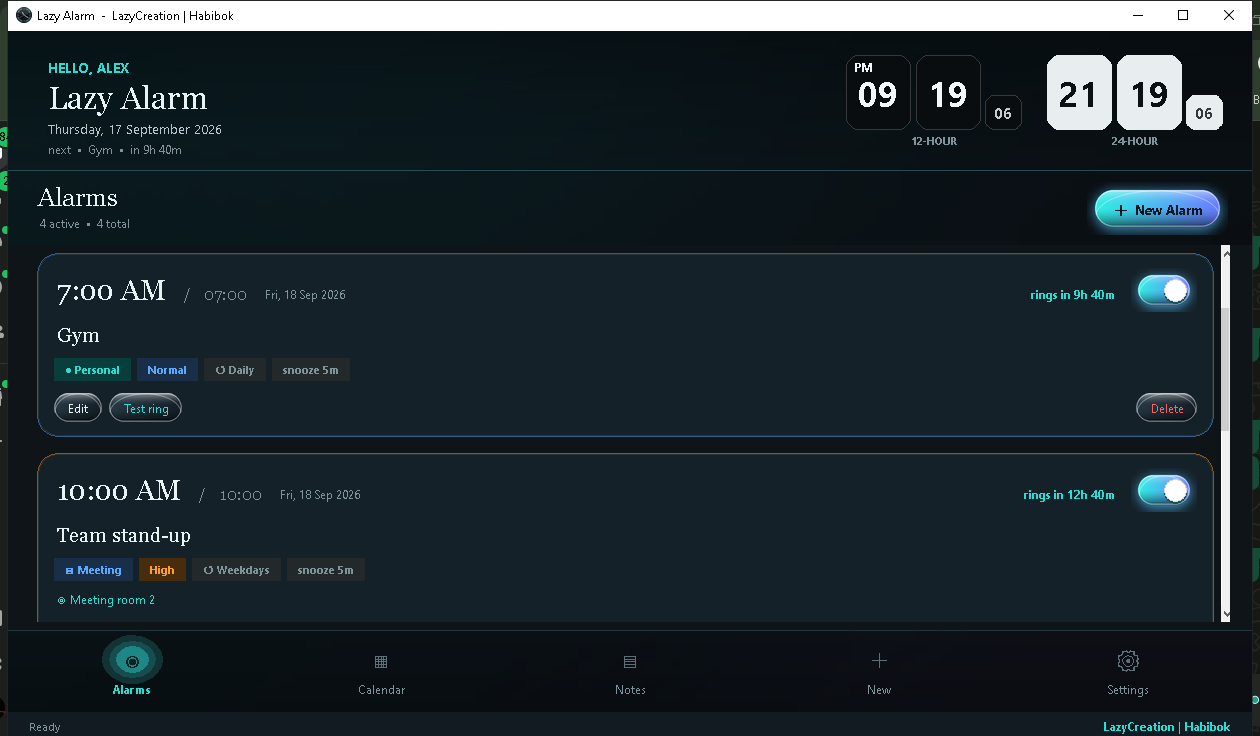
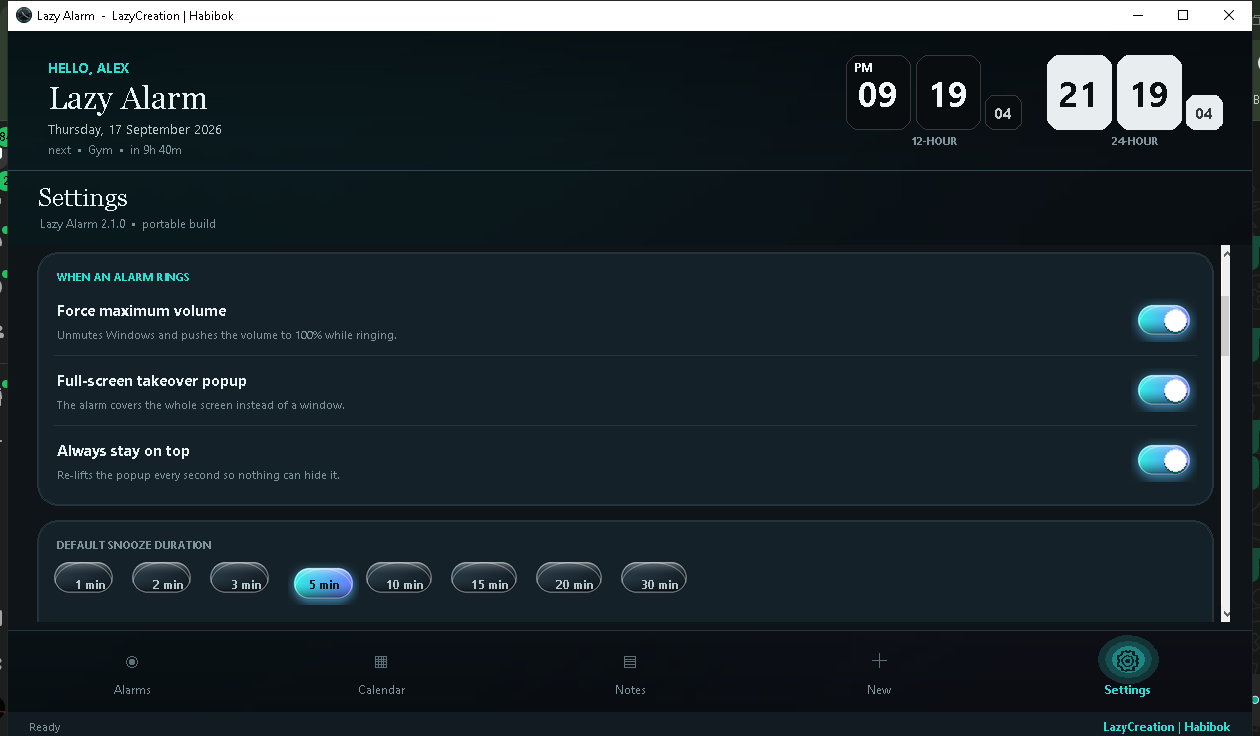
- Flip-clock header — 12-hour and 24-hour clocks side by side, today's date, time to the next alarm, and
HELLO, <your name>. - Five tabs — Alarms, Calendar, Notes, New and Settings.
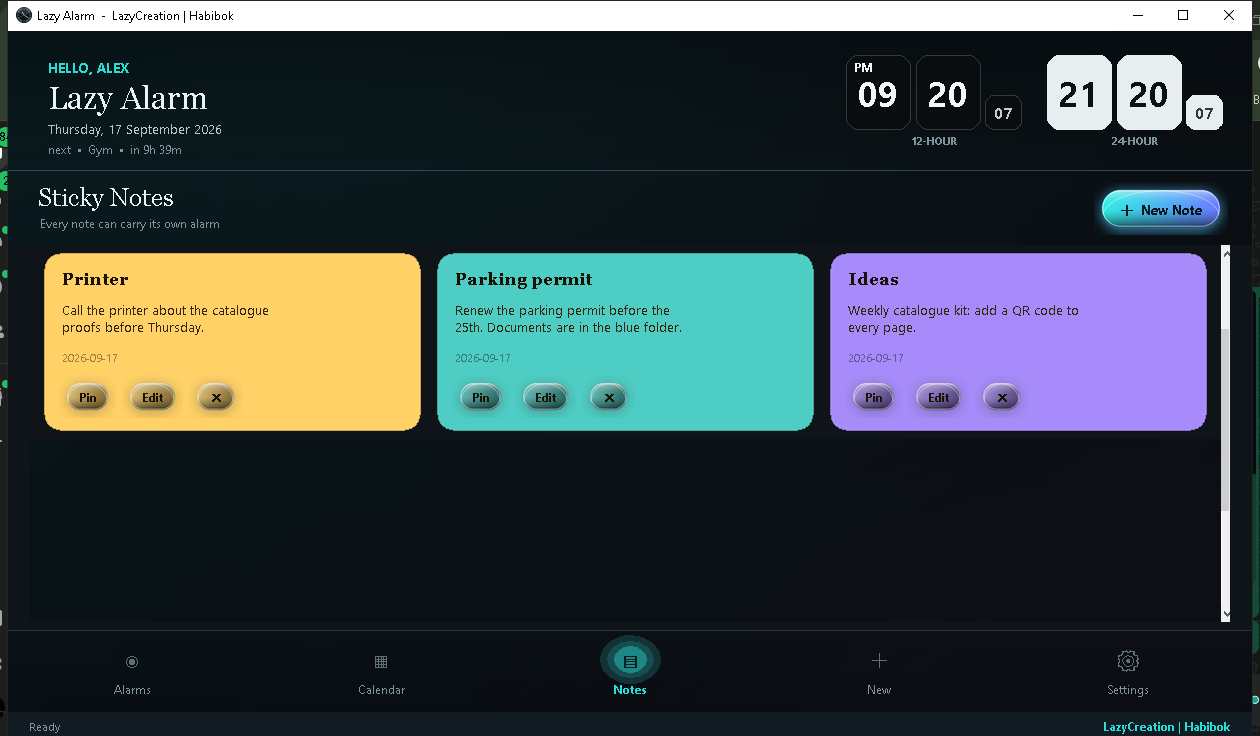
- Notes with reminders — colourful sticky notes; each one can carry its own alarm.
- Google Calendar import — paste the calendar's secret iCal link and events become alarms; synced every 30 minutes (read-only, no login, no API key).
- Tray and startup — closing the window sends it to the tray; it starts with Windows and never launches twice.
- Updates for a team — point every copy at a shared folder or a web link; new versions install themselves after a Yes.
- Backgrounds — five presets (Aurora, Nebula, Ember, Ocean, Graphite) or your own picture with blur and dim.
- Four sounds — Siren, Beeps, Bell, Chime; every alarm card has a Test ring button.
- Crisp on any screen — DPI aware, so text stays sharp at 125 %, 150 % and 4K scaling.
- Your data stays yours — everything is in
LazyAlarmData\data.jsonnext to the exe.
Requirements
- Windows 10 or Windows 11, 64-bit.
- No Python, no installer, no administrator rights.
- About 45 MB of disk space for the folder.
- Speakers or headphones. Windows can be muted — Lazy Alarm unmutes it — but a hardware mute switch or a physical volume knob cannot be overridden by software.
Step by step
1. Download and extract
- Click Download free at the top of this page. You get
LazyAlarm-v2.1.0.zip(about 20 MB). - Right-click the zip → Extract All… → choose a folder you will keep, for example
Documents\Lazy Alarm→ Extract. - Inside you find
LazyAlarm.exe, a folder called_internalandLazyAlarmData. Keep them together. The exe does not run without_internal.
2. First start
- Double-click LazyAlarm.exe.
- If a blue "Windows protected your PC" box appears, click More info → Run anyway. It appears because the program is not signed with a paid certificate.
- On the very first start Lazy Alarm adds itself to Windows startup, so it is running in the background whenever the PC is on. To undo this: Settings → App → Start with Windows → Remove.
3. Add an alarm
- Open the New tab.
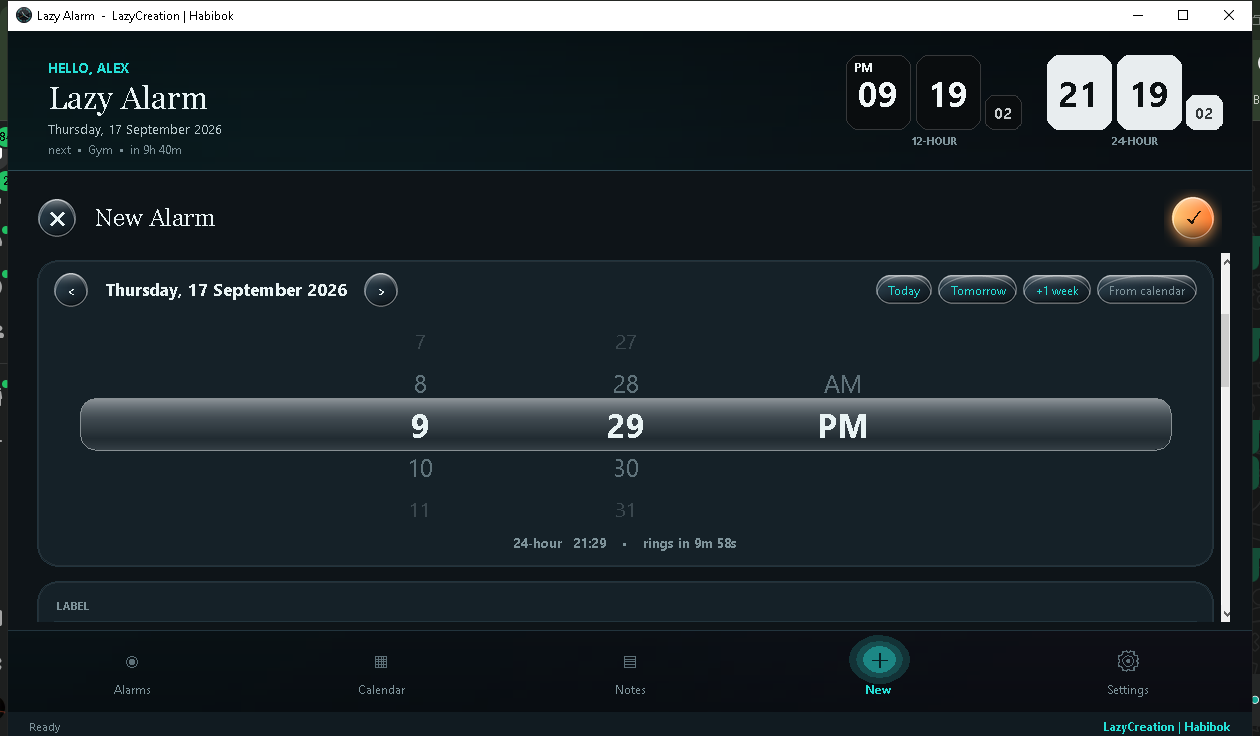
- Turn the time wheel to the time. Pick the date with the ‹ › arrows.
- Give it a Label (for example "Team stand-up"), a Category, a Priority and a Repeat rule.
- Choose the Sound, switch Snooze on or off and set its duration.
- Add a Place and Full details if you want them shown in the popup.
- Press Save. The alarm appears as a card in the Alarms tab.
4. When it rings
The screen turns into a blinking popup with the label, time, place and details. The siren plays at full volume.
- ✓ MARK AS DONE — stops the alarm. For repeating alarms the next one is scheduled automatically.
- Snooze — shown only if snooze is on for that alarm; it rings again after the chosen minutes.
Nothing else closes it — that is the point.
5. Closing and the tray
Pressing ✕ does not quit. Lazy Alarm goes to the system tray (next to the clock). Click the tray icon for Open, New alarm or Quit. Alarms ring while it sits in the tray; they do not ring if you quit completely.
The screens
| Tab | What it does |
|---|---|
| Alarms | One card per alarm: big 12-hour time with 24-hour beside it, on/off switch, category, priority, repeat and snooze badges, and Edit · Test ring · Delete buttons. |
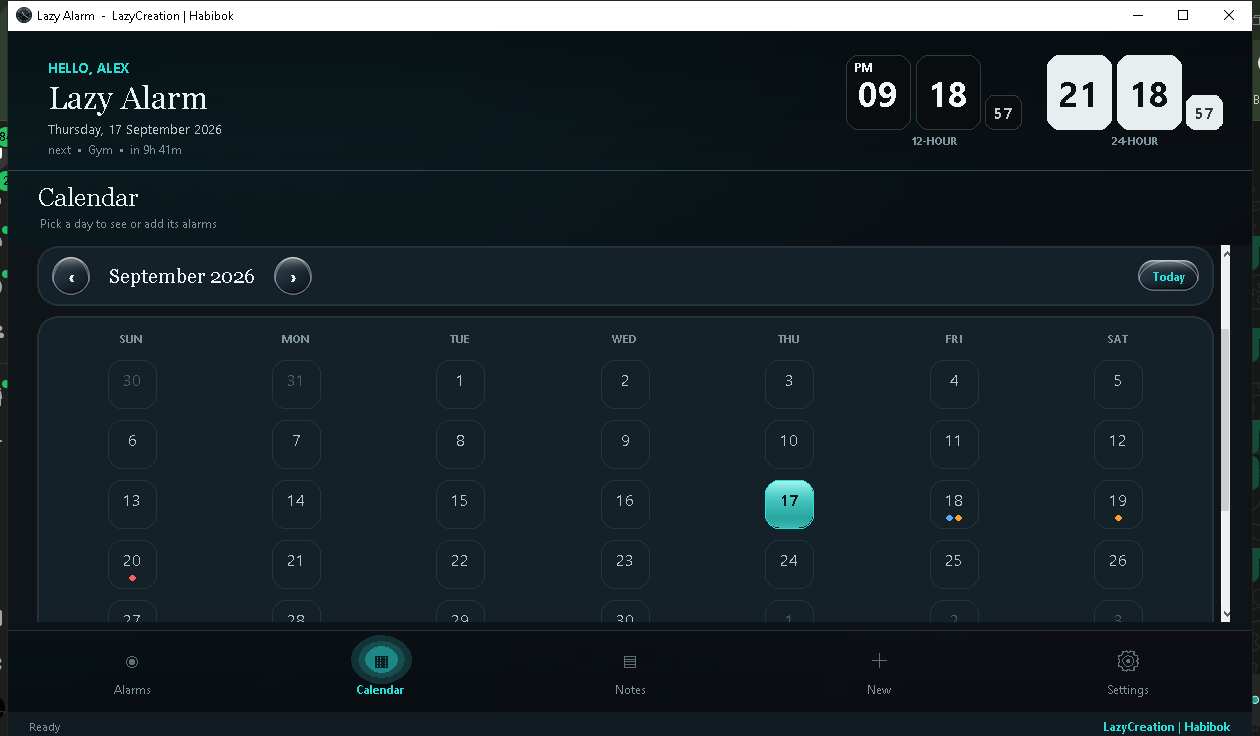
| Calendar | A month grid with a coloured dot on days that have alarms. Click a day to see its alarms and use + Add alarm on this day. |
| Notes | Sticky notes in six colours. Each note has Remind me about this note, which creates an alarm linked to it. |
| New / Edit | The time wheel, date arrows, Label, Category, Priority, Repeat, Sound, Snooze + duration, Place and Full details. |
| Settings | Everything below. |
Settings
- When an alarm rings — Force maximum volume · Full-screen popup · Always on top.
- Default snooze duration and default sound (Siren / Beeps / Bell / Chime).
- Background — a preset or My picture…, with Blur (off to 40) and Dim (25 % to 85 %). More dim makes the picture fade so buttons and text stay readable; the header and tab bar get extra shade automatically.
- App — Button click sound · Keep running in the background (tray) · Start with Windows · Greeting name (PC user, computer name or custom).
- Google Calendar — see below.
- Updates — see below.
- Quit Lazy Alarm completely — the only real quit button apart from the tray menu.
Google Calendar
No Google login, no API key, no cloud project — only the calendar's secret address.
- In your browser open Google Calendar → hover the calendar name on the left → ⋮ → Settings and sharing.
- Scroll to Integrate calendar → copy the Secret address in iCal format.
- In Lazy Alarm open Settings → Google Calendar and paste the link.
- Choose Ring this long before the event (at start, or 5 / 10 / 15 / 30 / 60 minutes before).
- Press Sync now.
With Sync automatically on, the app checks the calendar every 30 minutes.
| Change in Google Calendar | What Lazy Alarm does |
|---|---|
| New event | Becomes an alarm (category Meeting, priority High) with a blue Google Calendar badge |
| Event renamed or moved | The alarm changes at the next sync |
| Event deleted | The alarm is removed |
| You marked the alarm done | The sync does not bring it back |
| Repeating event | Daily, weekly (with weekdays), monthly and yearly events are expanded up to 60 days ahead |
| All-day event | Rings at 9:00 in the morning |
| Cancelled event | Skipped |
This is one-way, from Google to Lazy Alarm. Alarms you create in Lazy Alarm are not written to Google Calendar. Remove imported deletes only the alarms that came from Google.
Updates for a whole office
No server is needed — a shared folder or any web link is enough.
Once on every PC: open Settings → Updates, enter the source and turn on Check on every start.
\\office-pc\share\LazyAlarm          (a network folder)
https://yoursite.com/lazyalarm       (a web link)
When you release an update, put two files in that place: the new LazyAlarm.exe and a version.txt whose first line is the version (for example 2.1.1) and second line says what changed. Every PC checks the file at start, offers the update, downloads it after a Yes, replaces itself and restarts. Alarms and notes are never touched — they live in a separate folder.
Two simpler options: keep the new exe in the shared folder and tell everyone to copy it, or let every PC run the exe straight from the network folder (the share must always be online).
FAQ
Is it free? Yes, for personal and office use.
Does it need the internet? No. It only connects to the two links you give it yourself: the Google Calendar address and the update source. Nothing else, and nothing is collected.
Why does Windows or my antivirus warn about it? The program is built with PyInstaller and is not signed with a paid certificate, and some of its features — starting with Windows, forcing the volume, replacing itself during an update — look suspicious to antivirus heuristics. It is a known false positive. The folder build you download here triggers far fewer warnings than a single-file exe. See Troubleshooting for Kaspersky.
Can I check the file myself?
Yes. Upload LazyAlarm.exe to virustotal.com — usually 2 to 5 engines out of 70 flag it on heuristics, the rest do not. The SHA-256 of the zip is on this page.
Will it ring when the window is closed? Yes, as long as it is in the tray. It will not ring if you chose Quit or turned off "Keep running in the background".
The PC is muted or very quiet. Will I hear it? Yes — it unmutes Windows and raises the master volume. Only a hardware mute switch or a physical volume knob is out of reach.
Can it write my alarms to Google Calendar? Not yet. Import is one-way.
Where is my data?
LazyAlarmData\data.json next to the exe. If the folder is read-only (for example inside Program Files), it writes to %APPDATA%\LazyAlarm instead. Copy that file to move your alarms to another PC.
I started it twice. That is fine — the running copy comes to the front instead of opening a second one.
Troubleshooting
Nothing happens when I double-click the exe.
Make sure the zip was fully extracted and that _internal sits next to LazyAlarm.exe. Check the system tray — it may already be running.
Kaspersky or another antivirus deleted or blocked it.
Restore the file, then add the folder to the exclusions. Home Kaspersky: Settings → Security settings → Threats and Exclusions → Add the folder, then Specify trusted applications → Add LazyAlarm.exe. In an office with Kaspersky Endpoint Security the IT admin adds the folder and the exe to the policy's trusted zone once, for every PC. You can also report the false positive at opentip.kaspersky.com.
Still blocked? Turn off the features that antivirus dislikes in Settings: Start with Windows (Remove), Updates → Check on every start, and Force maximum volume. You lose those features but the app runs.
No sound. Check that a playback device is selected in Windows, and that the alarm's sound is not set to a file that was removed. Press Test ring on the alarm card.
The popup did not fill the screen / did not stay on top. Turn on Full-screen popup and Always on top in Settings → When an alarm rings.
The greeting shows the wrong name. Settings → App → Greeting name → choose PC user, computer name or type a custom name.
Update check fails.
The source folder or link must contain version.txt and LazyAlarm.exe. A network share must be reachable from that PC.
Privacy
What it stores: your alarms, notes and settings in LazyAlarmData\data.json on your own PC.
What it sends: nothing, unless you set a Google Calendar link (it downloads that calendar) or an update source (it reads version.txt there). No analytics, no account, no telemetry.
What it changes on the PC: on the first run it creates a startup entry in your user's Startup folder (removable in Settings). While an alarm rings it changes the Windows master volume. Nothing else.
Changelog
v2.1.0 — Current release. Liquid-glass interface, DPI awareness, five backgrounds or your own picture with blur and dim, Google Calendar import, per-alarm snooze with duration, notes with reminders, team updates from a shared folder or web link, publisher information in the exe, folder build for fewer antivirus warnings.
v1.0 — First version: alarms with full-screen popup and siren.