What it is
LazyPC Inspection is a small, portable tool that checks a Windows laptop or PC before you pay for it.
You run it from a USB stick. In one or two minutes it reads the real hardware, the Windows license, the disk and battery health, the installed software and the crash history. Then it opens one clear report in your browser with a verdict, a score and a list of problems.
It does not install anything. It does not change anything. It does not send anything to the internet.
Who it is for
- People buying a used laptop or PC.
- People buying a "brand new" laptop from a small shop or an online seller, where the box may have been opened and parts may have been changed.
- Anyone who wants to check the seller's claims (RAM, SSD, CPU, "never used", "original screen") in a few minutes, without being a technician.
Key features
- Full configuration — CPU (with generation and launch year), every RAM module, every disk, graphics, display panel, battery, network cards, ports and sensors.
- Original or replaced? — compares the manufacture dates of the display panel, battery, BIOS and CPU generation, checks the serial numbers and the RAM modules, and tells you when something does not match.
- Genuine Windows check — reads the license channel and the factory key stored in the firmware, and looks for KMS / activator traces.
- Spyware and remote-control check — searches running programs, autostart entries, services, scheduled tasks, installed software and live network connections for remote-access tools, employee monitors, keyloggers, stalkerware, tracking agents and activators. Also finds hidden user accounts and login backdoors.
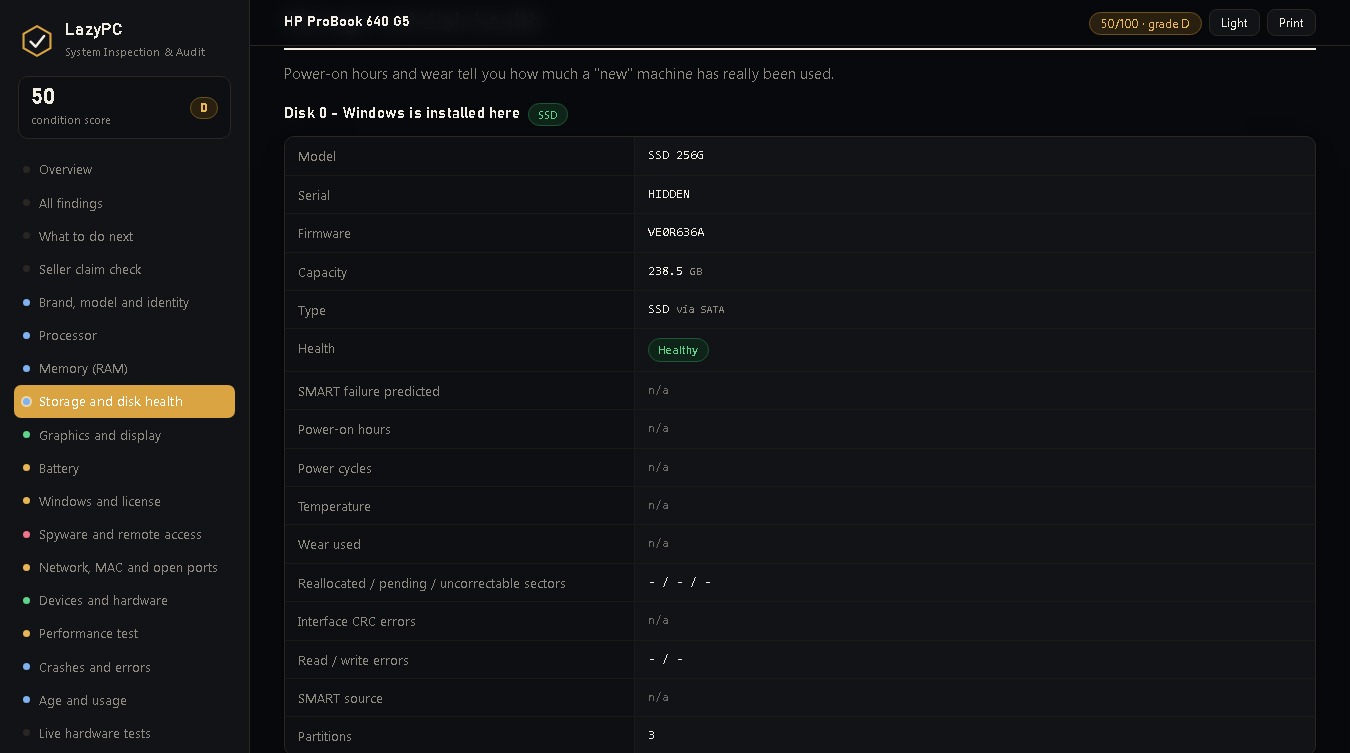
- Disk health — SSD or HDD, power-on hours, temperature, wear, bad sectors, failure prediction.
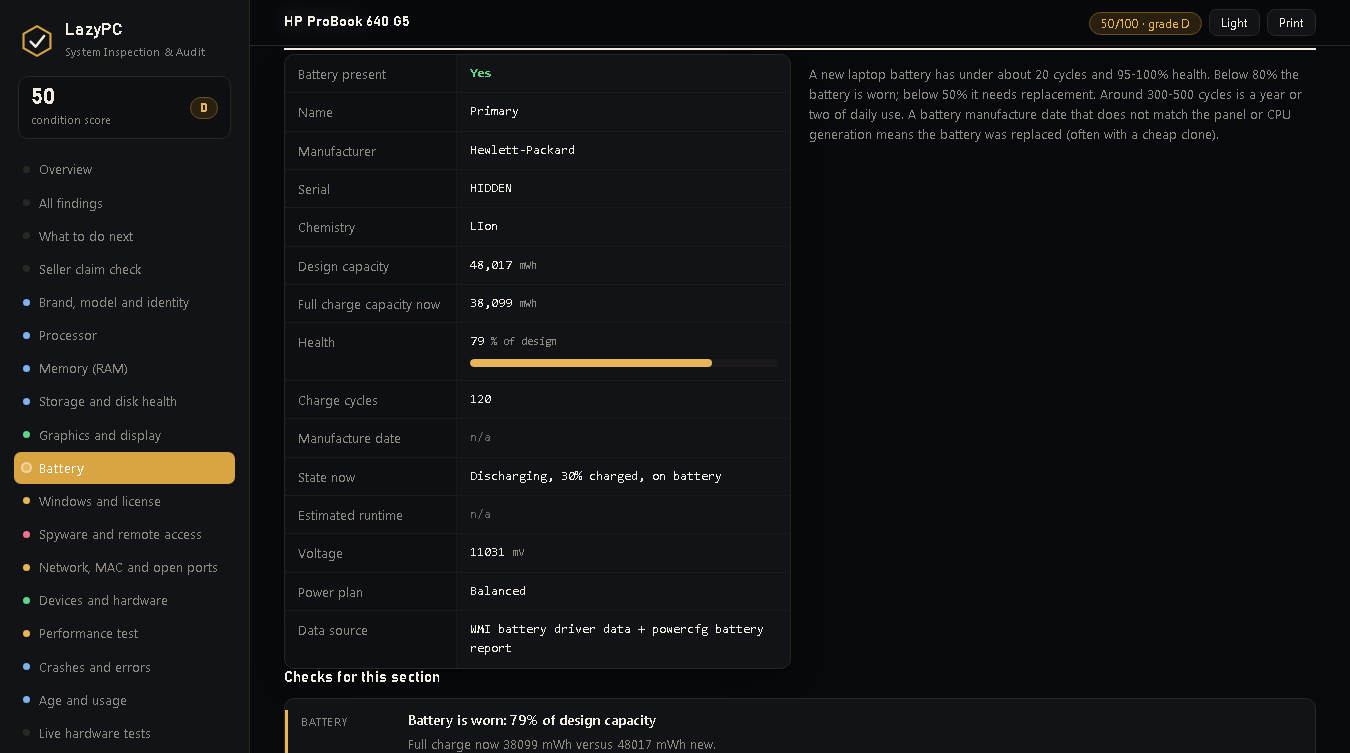
- Battery health — real capacity versus design capacity, charge cycles, manufacture date.
- Display panel — panel maker, size, native resolution and manufacture week from the screen's own data (EDID).
- Crash history — hardware errors, blue screens, disk errors and power-loss shutdowns from the last 30 days.
- Speed test — CPU single- and multi-core, throttling under load, memory speed, disk read/write speed. It catches "sold as SSD, performs like HDD" and "lots of RAM but slow".
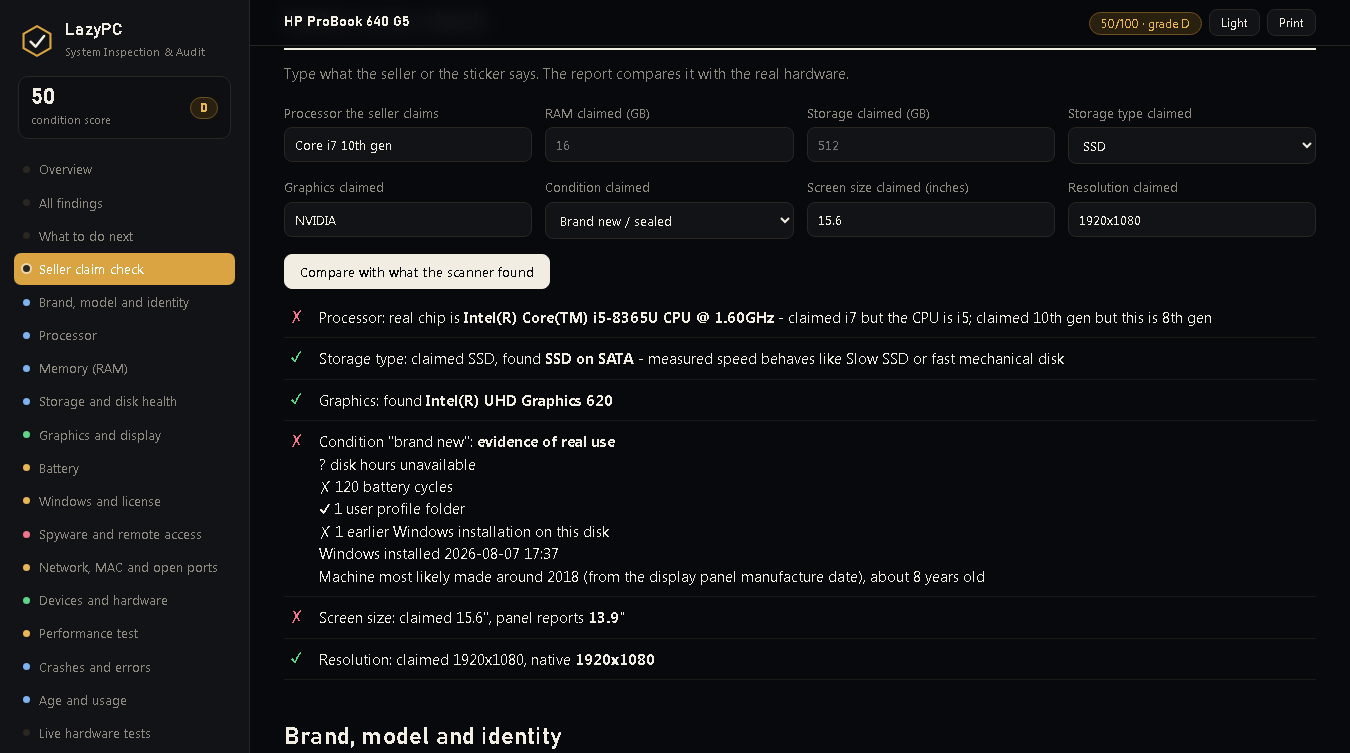
- Seller claim check — type what the seller told you; the report compares it with the real hardware.
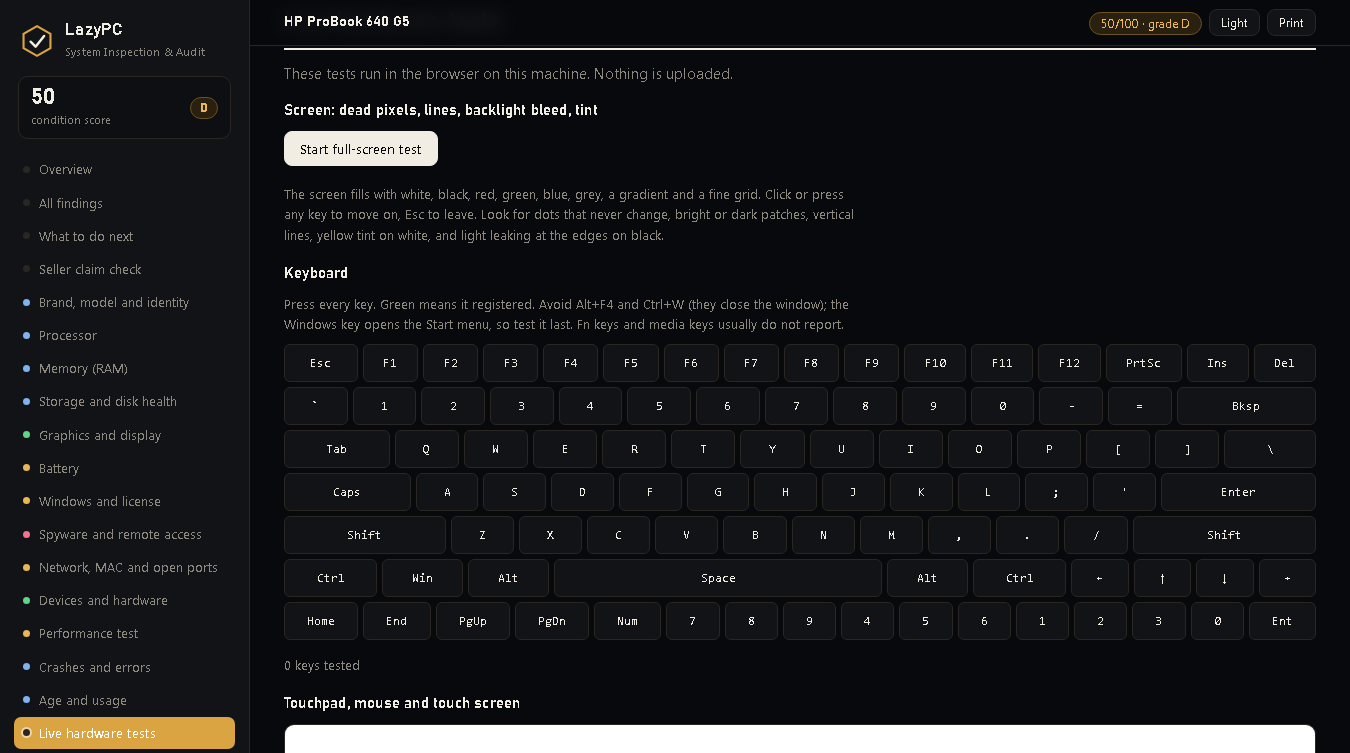
- Live hardware tests — dead pixels, keyboard, touchpad/touch screen, speakers, microphone, camera, battery drain and a physical checklist, all inside the report.
- Verdict, score and summary — one line, one number, and the reasons.
- Bangla section — the key results explained in Bangla inside the same report.
- One file — the report is a single HTML file you can keep, print or send.
Requirements
- Windows 10 or Windows 11 (64-bit). Windows 8.1 should also work. Windows 7 is not supported.
- PowerShell 3.0 or newer — it is built into every supported Windows, nothing to install.
- Administrator rights are recommended. Click Yes when Windows asks. Without them the tool still runs, but disk health, TPM, Secure Boot and some security checks will be limited.
- About 3 GB of free space on the Windows drive for the disk speed test (the test file is deleted automatically).
- A web browser to view the report (Edge is fine).
- A USB stick to carry the tool.
Step by step
1. Download
Click Download free at the top of this page. You get LazyPC-Inspection-v2.2.0.zip (about 115 KB).
2. Extract to a USB stick
- Plug in a USB stick.
- Right-click the zip → Extract All… → choose the USB stick → Extract.
- You should now have a folder with three files:
Run-LazyPC.bat,LazyPC.ps1andREADME.txt.
Do not rename the files. Run-LazyPC.bat needs LazyPC.ps1 in the same folder.
3. Run it at the shop
- Plug the USB stick into the laptop or PC you want to buy.
- Open the folder on the USB stick.
- Double-click Run-LazyPC.bat.
4. If Windows SmartScreen appears
A blue box may say "Windows protected your PC". This happens because the tool is a script, not a signed, installed program.
Click More info, then Run anyway.
5. Allow administrator rights
Windows asks "Do you want to allow this app to make changes to your device?". Click Yes.
If the shop does not know the admin password, click No — the tool continues with fewer checks and tells you which ones were skipped.
6. Wait
A black window shows the progress step by step. It usually takes 1 to 2 minutes. The fan may spin up during the speed test; that is normal. Do not close the window.
7. Read the report
The report opens in the browser by itself. It is also saved as a file:
- next to the tool on the USB stick, named
LazyPC-Report_<computer name>_<date>.html(plus a.jsonfile with the raw data); - or on the Desktop if the USB stick is write-protected.
Keep the file. You can open it later on any computer.
How to read the report
Verdict
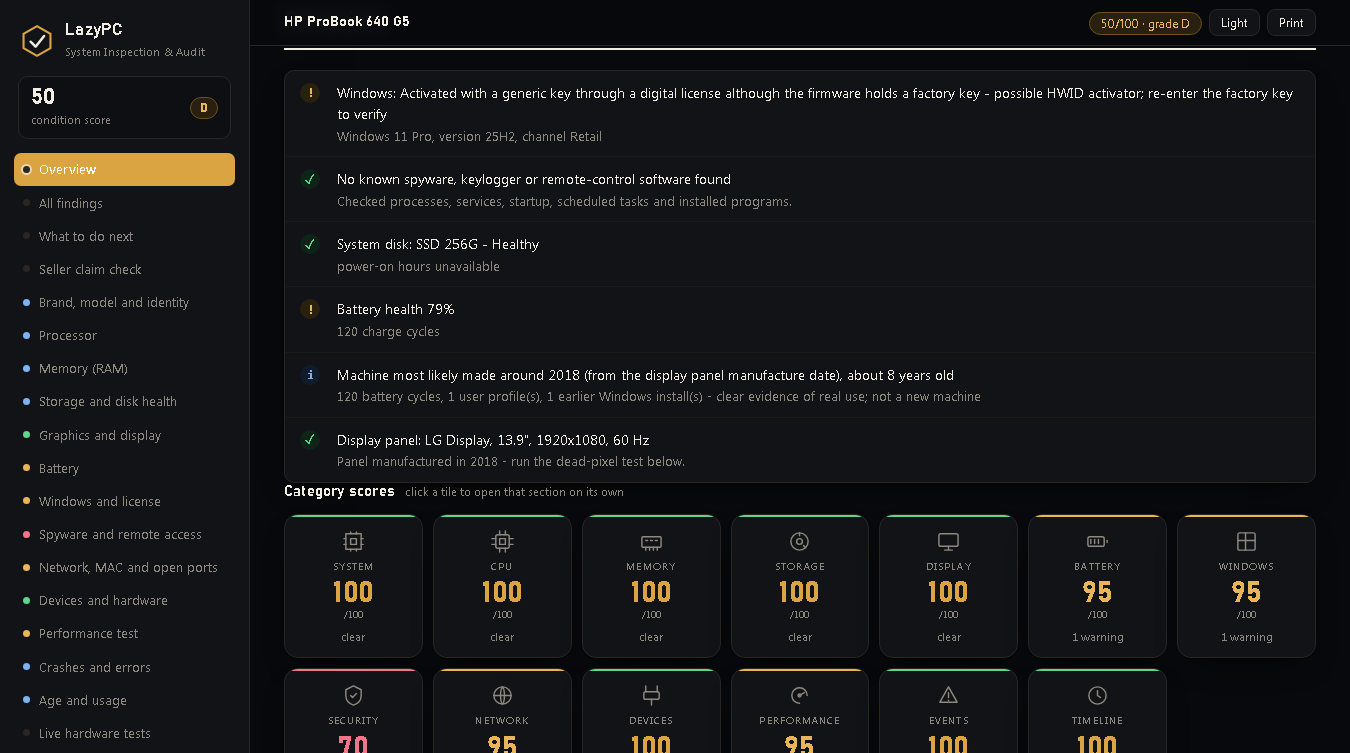
The first line at the top. It tells you in plain words whether the machine looks fine, needs a careful look, or should not be bought at the asking price.
Score
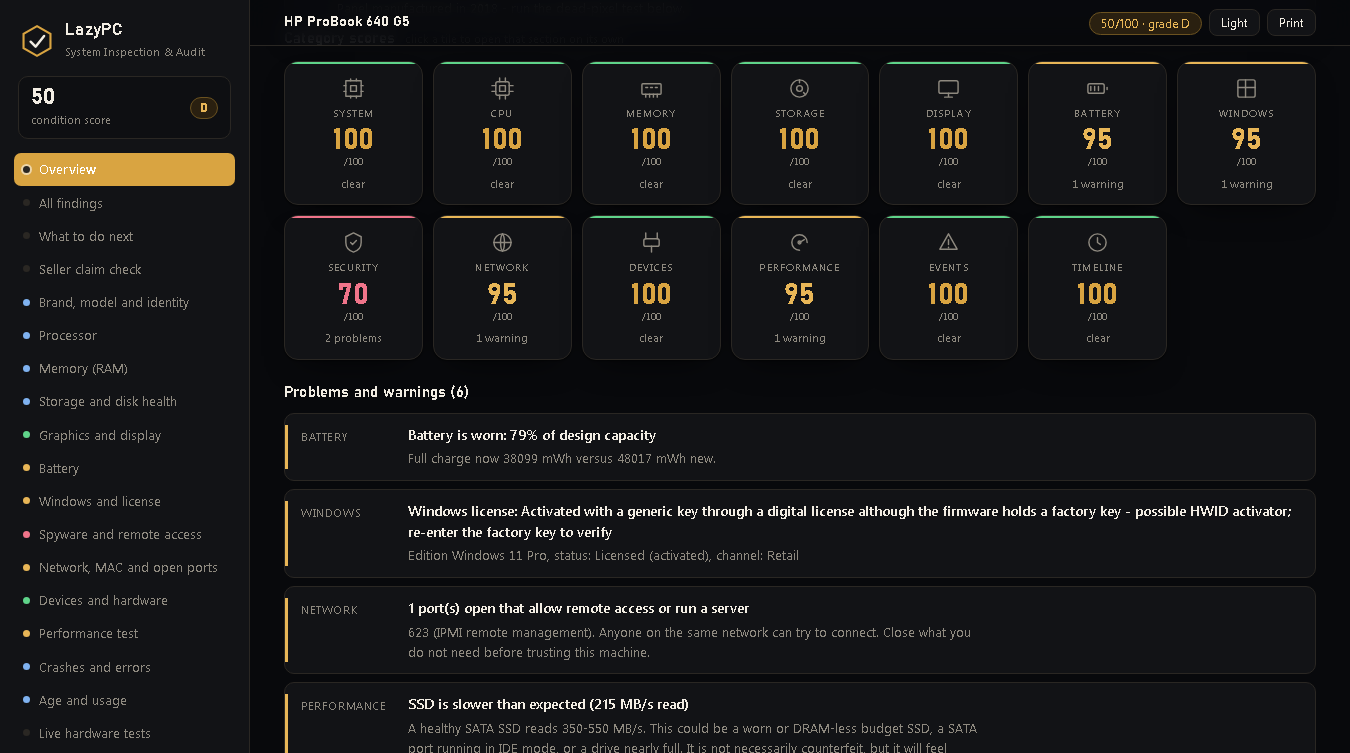
A number from 0 to 100 with a grade from A to F. It starts at 100. Every problem takes 15 points away, every warning takes 5. Green (75 and above) is good, yellow means think twice, red means walk away or negotiate hard.
Summary
The most important states in one glance: Windows license, spyware, system disk, battery, usage level and display. Each line is green, yellow or red.
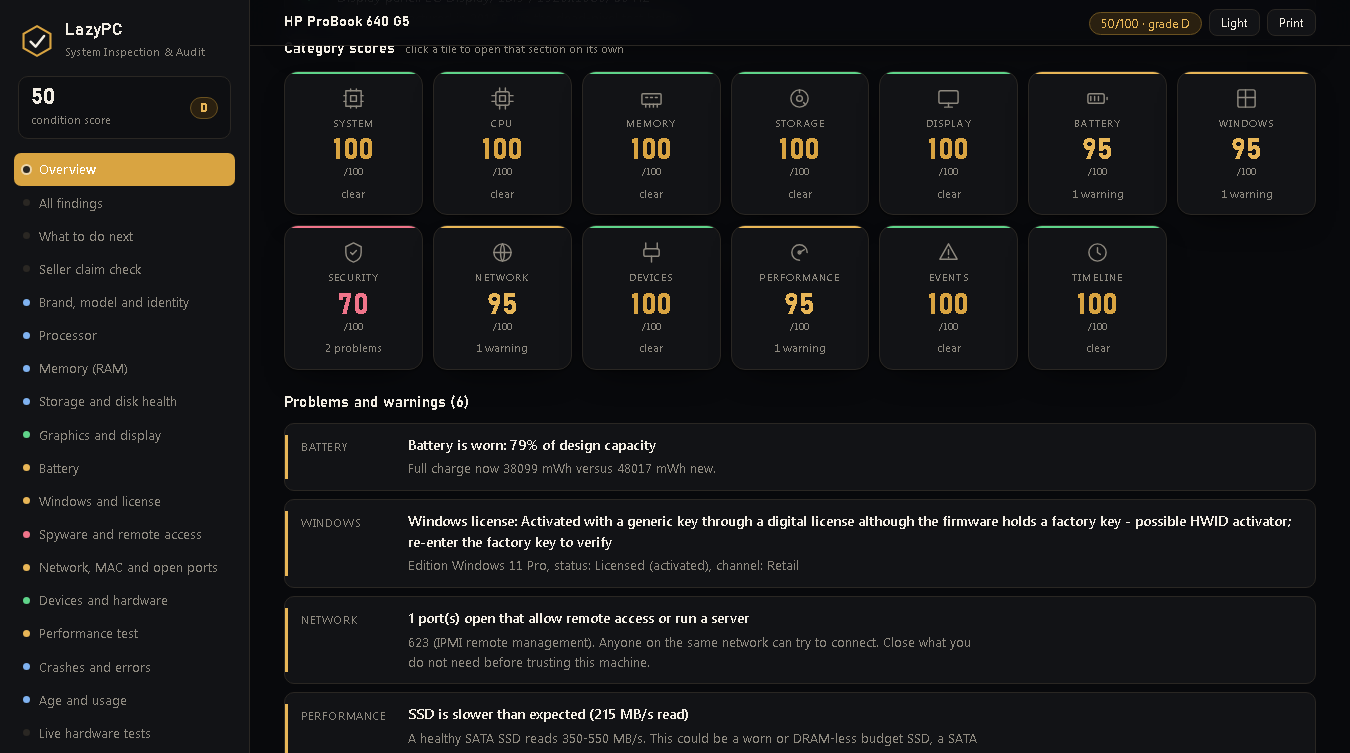
Category tiles
One tile per area — System, CPU, Memory, Storage, Display, Battery, Windows, Security, Devices, Performance, Events, Timeline. The colour shows the worst finding in that area. Click a tile to jump to the details.
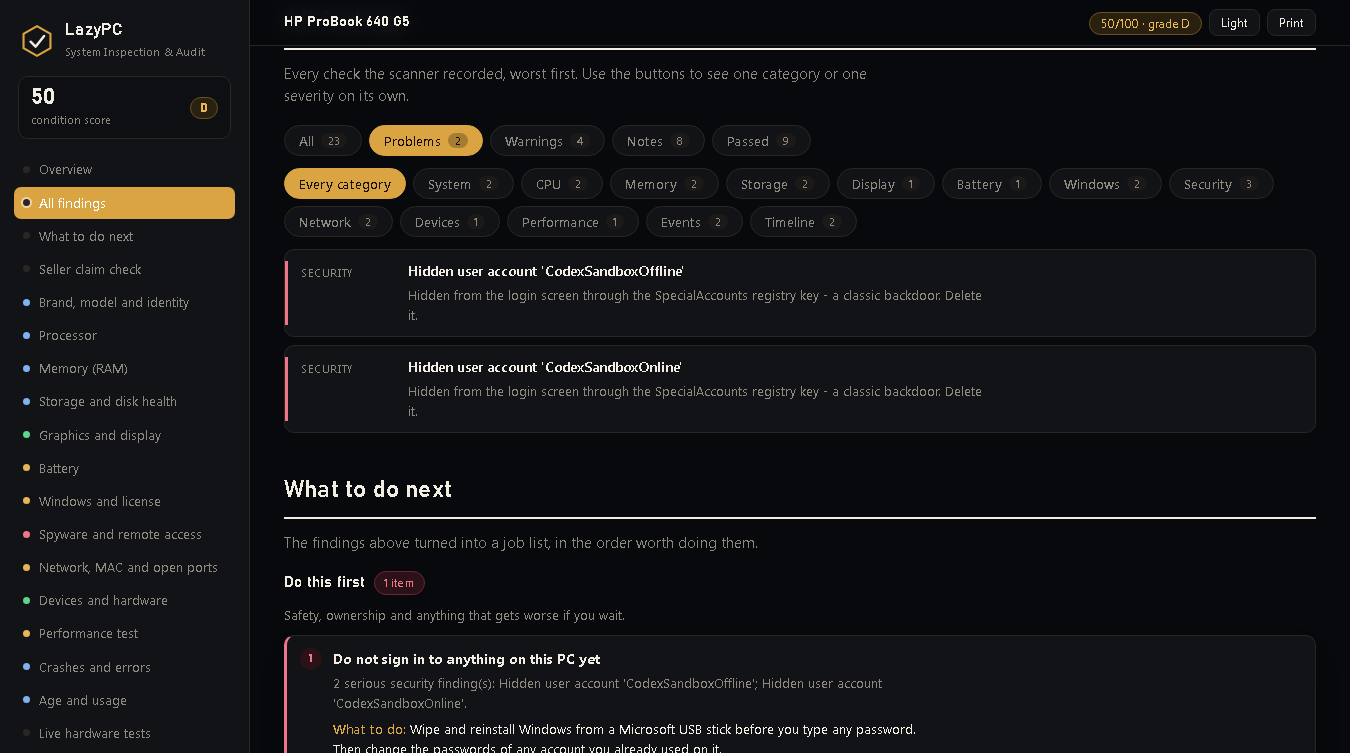
Findings and filters
Every finding has a level:
- PROBLEM (red) — a real fault or a sign of cheating. Read these first.
- WARNING (yellow) — something to check or negotiate.
- INFO (blue) — good to know, not a fault.
- OK (green) — checked and fine.
Use the filter buttons to show only problems, only warnings, and so on. Use the search box to find a word (for example "battery" or "KMS").
Seller claim check
Type what the seller told you — CPU, RAM, storage size and type, graphics, condition (new / open box / used), screen size and resolution. The report compares each claim with what the hardware really reports and marks it as matched, different or not confirmed.
Live hardware tests
At the end of the report there are tests you do yourself, on the spot:
- Screen — full-screen colours to find dead or stuck pixels and bright spots.
- Keyboard — press every key; each key lights up when it works.
- Touchpad / touch screen — draw on the canvas; check every corner.
- Speakers — left, right and sweep tones.
- Microphone — a level meter.
- Camera — a live preview.
- Battery — a live reading; unplug the charger and watch the percentage.
- Physical checklist — hinges, ports, screen cracks, fan noise, stickers. Tick and add notes.
Bangla section
The key results — verdict, score, the problems and what to do about them — are also explained in Bangla in the same report, for buyers who prefer Bangla.
Raw data
The full technical data is at the bottom, and in the .json file, if a technician wants to look deeper.
FAQ
Is it safe to run on a machine I do not own yet? Yes. It only reads information. It writes one report file and one temporary speed-test file that it deletes itself.
Does it need the internet? No. It works fully offline. Nothing is uploaded.
Why does Windows or the antivirus warn about it?
The tool is a PowerShell script and it is not signed with a paid certificate, so SmartScreen shows a warning. The speed test compiles a tiny piece of code on the spot, which some antivirus programs find unusual. If your antivirus blocks the speed test, run the tool with -NoBench (see Troubleshooting).
Can the tool prove a laptop is original? No tool can prove that 100%. It gives strong indicators: serial numbers that are blank or fake, a screen or battery made years apart from the rest, replaced RAM, a Windows key that does not match the firmware, heavy usage counters on a "new" machine. Always check the serial number on the maker's website (the report has links) and on the sticker under the machine.
What if the seller says the report is wrong? The report reads the hardware's own data. Ask the seller to explain the specific finding — for example why the display panel was made two years after the laptop.
Does it work on a Mac or on Linux?
No. Windows only. On a Mac use "About This Mac" and coconutBattery; on Linux use inxi -Fxz and smartctl.
Can I run it without administrator rights? Yes, click No on the prompt. Disk health, TPM, Secure Boot and some security checks will be missing.
Can I send the report to someone? Yes, it is one HTML file. Note that it contains the computer name and serial numbers.
Does it fix anything? No. LazyPC Inspection only inspects. It never changes settings, deletes files or removes programs.
Does it work on a desktop PC? Yes. Battery and panel checks are skipped when there is no battery or built-in screen.
Troubleshooting
The black window closes at once, or nothing happens.
Make sure the zip was fully extracted (not opened inside the zip viewer) and that LazyPC.ps1 sits next to Run-LazyPC.bat. Right-click Run-LazyPC.bat → Run as administrator.
"Running scripts is disabled on this system".
Start the tool with Run-LazyPC.bat, not by double-clicking LazyPC.ps1. The .bat file allows the script for this run only.
The antivirus deleted or blocked a file.
Restore it from the zip, add the folder to the antivirus exclusions, or run the tool with the speed test off: open a Command Prompt in the folder and type Run-LazyPC.bat -NoBench.
The report did not open.
Open the USB folder (or the Desktop) and double-click the LazyPC-Report_…html file.
Some sections say "unavailable" or "not reported". Either the tool ran without administrator rights, or this machine's driver does not expose the data (common for eMMC storage, RAID/RST mode, some USB adapters and some batteries). The rest of the report is still valid.
It takes much longer than 2 minutes.
A very slow disk, a very old CPU or a lot of installed programs can make it slower. Wait for it to finish. If you are in a hurry, use -NoBench.
The report shows "virtual machine". The tool was run inside a virtual machine, not on real hardware. Readings inside a VM are meaningless for a purchase.
Other switches (type after Run-LazyPC.bat in a Command Prompt): -NoBench skip the speed test · -NoOpen do not open the browser · -NoPause close the window when done · -NoElevate do not ask for admin rights · -OutDir "D:\Reports" save the report elsewhere.
Privacy
What it reads: hardware information from Windows (WMI/CIM) and the firmware tables; disk SMART data; battery data; display EDID data; the Windows license status and the factory key stored in the firmware (shown masked, only the last 5 characters); installed programs; running processes; services; scheduled tasks; autostart entries; user accounts and profile folders; network settings, DNS, proxy, hosts file and current TCP connections; trusted root certificates; the System event log of the last 30 days; the Windows Update history.
What it writes: one HTML report and one JSON file next to the tool (or on the Desktop), and one temporary 256 MB speed-test file in the Windows temp folder that is deleted when the test ends.
What it changes: nothing. No settings, no registry values, no files on the inspected machine are modified. Nothing is installed.
What it sends: nothing. The tool never connects to the internet. The report stays on your USB stick.
What the report contains: the computer name, the Windows user name, serial numbers of the machine, board, disks and battery, MAC addresses, and the names of installed programs and running processes. Treat the report as private.
Changelog
v2.2.0 (2026-09-08) — Two Bangla sections inside the report: a summary (score, verdict, every problem and warning) and step-by-step fixes for each problem. A বাংলা button in the top bar, sidebar links, focus mode and print support for them. Separate advice when Intel AMT (port 623) is found.
v2.1.1 — Fixed a crash in the storage step when run as administrator (SMART power-on hours and power cycles), and a battery chemistry parsing bug.
v2.1.0 — New "What to do next" section: a priority list built from the findings.
v2.0.1 — Summary moved above the category tiles. Clicking a tile or a sidebar entry now shows only that section; a "Full report" button brings everything back.
v2.0.0 — Renamed to LazyPC Inspection. New network, MAC and open-ports section (which program listens on which port, with a risk verdict), category score tiles, severity and category filters, dark and gold design.
v1.1.0 — Bug fixes, fewer false positives, and a faster run (about 55–90 seconds instead of 123).
v1.0.0 — First release.