What it is
PC Optimizer Pro is a small, portable Windows tool that cleans junk files, frees RAM and then shows a Before vs After table so you can see exactly what changed. One file, no installation, no account, no internet.
It is built around one button, ONE-CLICK BOOST: measure the PC, clean the junk locations it knows, trim memory, measure again, compare. Everything it did is written to a log and can be exported as an HTML report.
Browser data is never deleted. A built-in Browser Shield keeps Chrome, Edge, Firefox, Brave, Opera, Vivaldi and other browsers out of every scan, so logins, cookies, bookmarks and open tabs are never lost.
Who it is for
- Anyone whose Windows 10 or 11 PC or laptop feels slower than it used to.
- People who want a cleaner that explains itself: what it found, what it removed, what it skipped.
- People who have been burned by "cleaners" that wiped browser logins or bundled extra software. This one does neither.
- Anyone who maintains other people's PCs and wants a report to show the owner.
It is not for fixing a broken Windows, a failing disk or malware — see "Honest expectations" below.
Before you start
- Download and extract. Click Download free at the top of this page, right-click the zip → Extract All…. You get
PCOptimizerPro.exe. Keep it in a permanent place (for exampleC:\Tools\) if you plan to use Auto-Boost, because the scheduled task points to that location. - Windows SmartScreen. The first run may show a blue box, "Windows protected your PC". The tool is free and not signed with a paid certificate, so SmartScreen does not know it yet. Click More info, then Run anyway.
- The administrator prompt (UAC). Windows asks "Do you want to allow this app to make changes to your device?". Click Yes. The tool needs administrator rights to clean system folders such as
C:\Windows\Temp, to stop and restart the Windows Update services for their cache, and to purge the memory standby list. The sidebar shows Administrator mode in green when all is well. - Close your work. Save open documents and close programs you are not using. RAM Boost trims every idle process, and the End task buttons close programs without saving.
- Optional restore point. Tools → System Restore point → Create restore point gives you a safety net before the first boost. The tool also creates one by itself before deep operations when that setting is on (it is on by default).
One-Click Boost step by step
Open the Dashboard and press ⚡ ONE-CLICK BOOST. The progress bar and the line under it show the current step. Keep the PC on; a run takes 20 seconds to 2 minutes, longer the first time or when the Windows Update cache is big.
- BEFORE snapshot. The tool measures CPU load, RAM in use, free space on the Windows drive, running processes and threads, enabled startup apps and the size of all junk it can clean. With the disk speed test on (Settings), it also writes and times a small temporary file. The result is a health score from 0 to 100.
- Smart Clean. Every module ticked on the Clean page runs in turn: user temp, Windows temp, stale prefetch entries, error reports, crash dumps, old logs, thumbnail and shader caches, Store-app temp files, the Windows Update download cache, the Delivery Optimization cache and the DNS cache. Files that are in use are skipped silently, never forced. Because the Windows Update cache counts as a deep step, a System Restore point is created first when that setting is on (Windows allows one per 24 hours; later runs the same day just log a code and continue).
- RAM Boost. The working set of every idle process is trimmed (core Windows processes are skipped) and the Windows standby list is purged, so active apps get more free memory.
- AFTER snapshot. The same measurements again, after a short pause so the system settles.
- Report. A Before vs After card appears with four tiles (Junk removed, RAM freed, Files removed, Health score) and a table: health score, RAM in use, RAM free, CPU usage, free disk space, junk files found, running processes, threads, startup apps enabled and, if measured, disk write and read speed. Green means better, red means worse, grey means no real change. The run is added to history and Export HTML report saves it as a file.
Each page
Dashboard
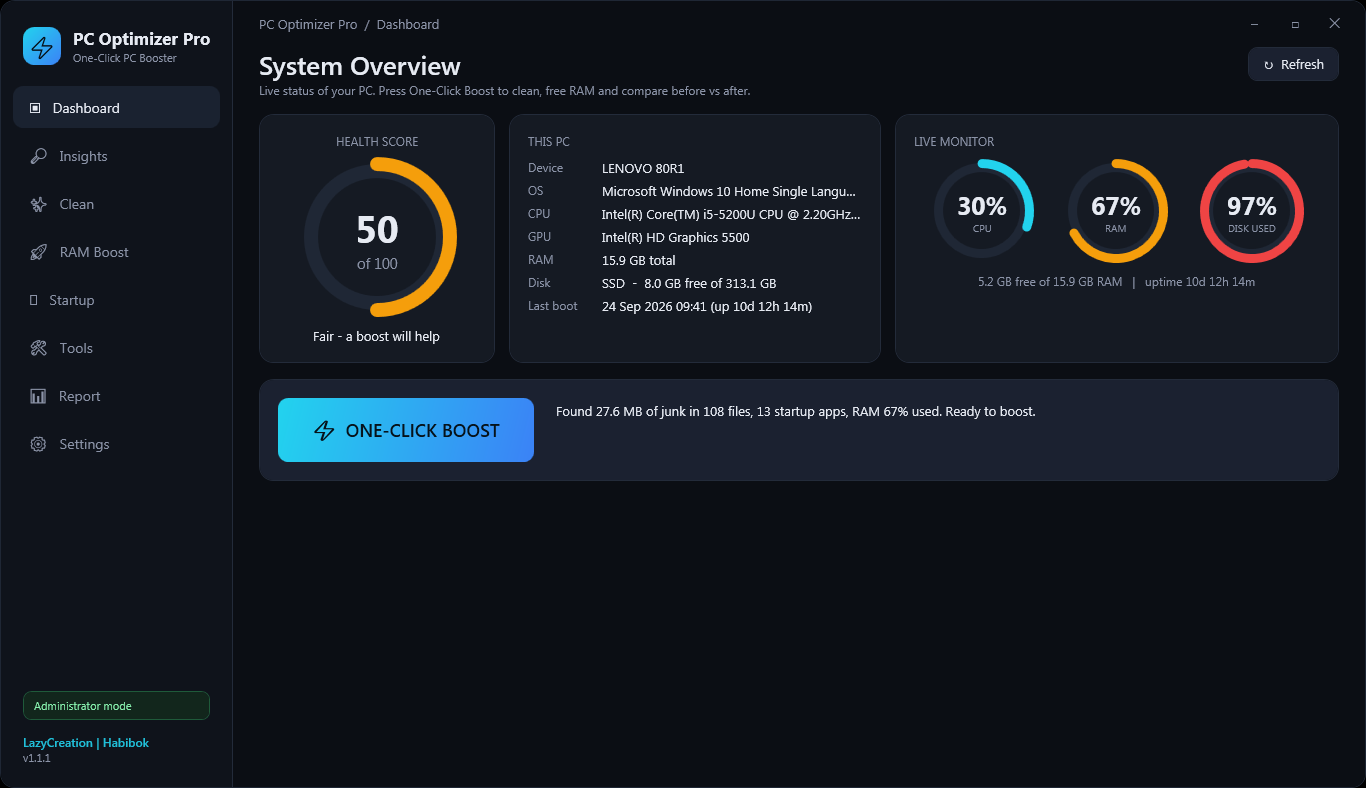
The home page. HEALTH SCORE is a ring from 0 to 100 with a label (Excellent / Fair / Poor). THIS PC lists your device, Windows build, CPU, GPU, RAM, disk type (SSD, NVMe SSD or HDD) and last boot time. LIVE MONITOR shows CPU, RAM and disk-used gauges refreshed every 1.5 seconds. Refresh retakes the snapshot. Nothing here changes anything except the big button.
Insights
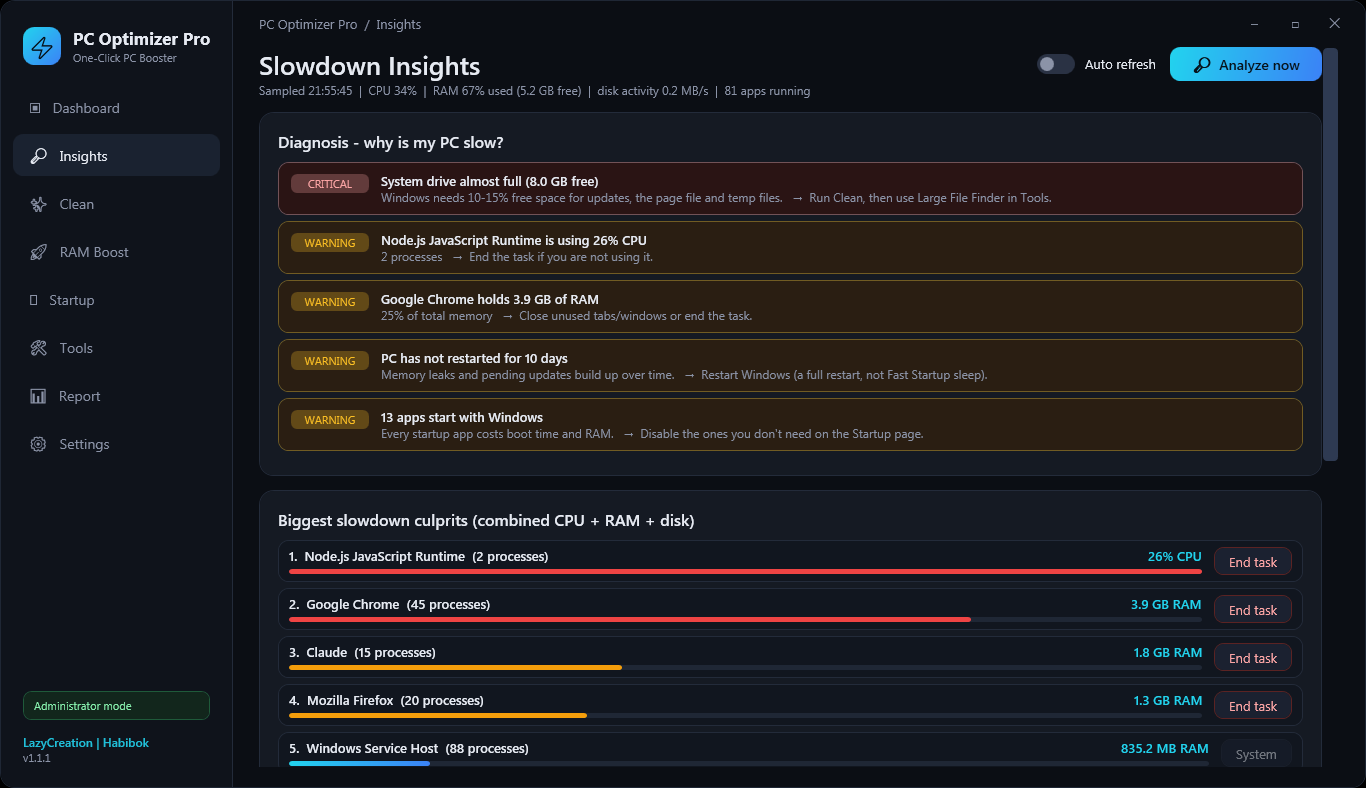
Press 🔎 Analyze now. The tool samples every process for 3 seconds and groups them per application. Diagnosis lists findings as CRITICAL, WARNING or OK — RAM almost full, system drive almost full, CPU maxed out, one app holding a large share of RAM or hammering the disk, no restart for 7 days or more, too many startup apps, Power saver plan active, Windows on a mechanical HDD — each with a one-line action. Biggest slowdown culprits ranks apps by combined CPU + RAM + disk, and three columns show the top CPU, RAM and disk users. Auto refresh repeats the sample every few seconds while the page is open.
Think twice before End task: it kills every process of that app at once and unsaved work in it is lost. System processes show a greyed "System" button and cannot be ended. Antivirus scans, Windows Update and the search indexer often look like culprits for a few minutes — let them finish.
Clean
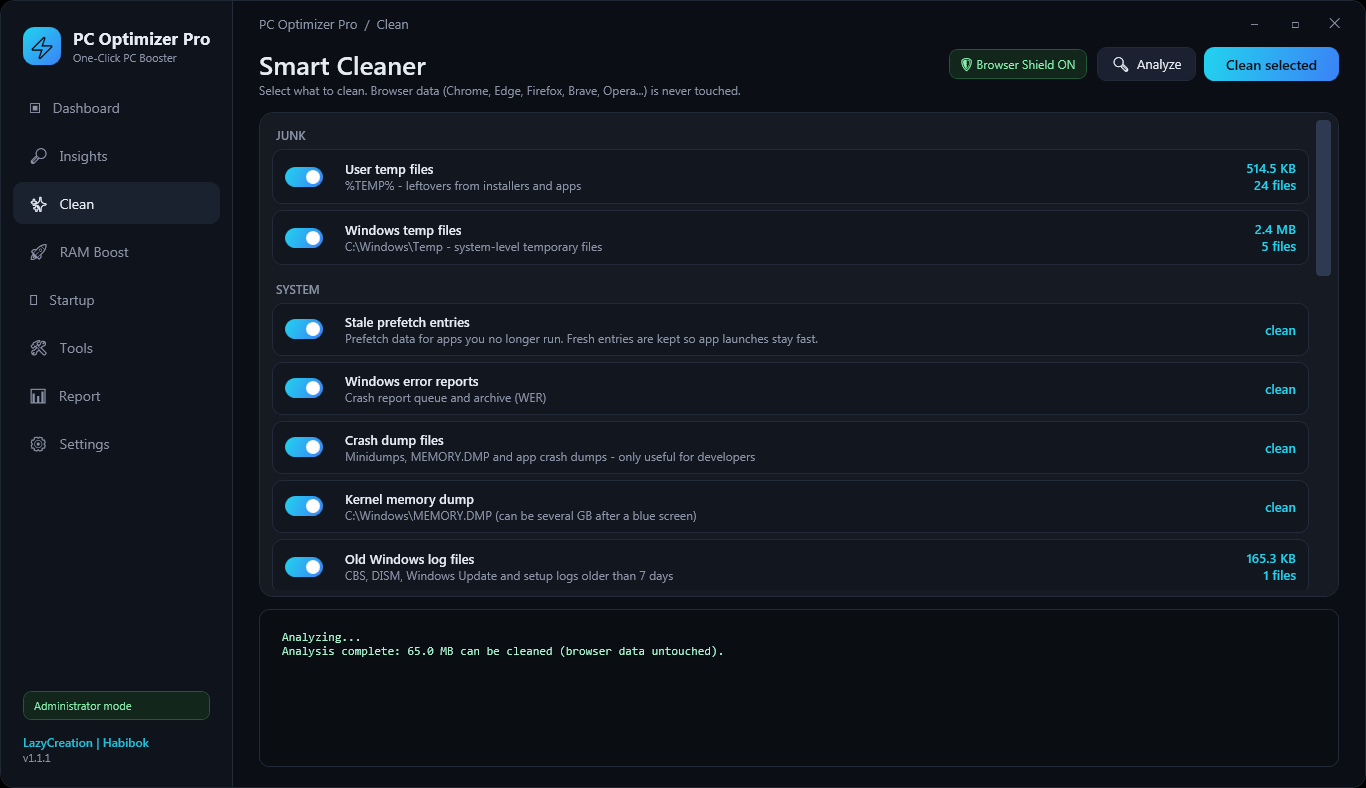
The Smart Cleaner. Press 🔍 Analyze first so each module shows how much it can remove, tick what you want, then press Clean selected. Your ticks are remembered. The log at the bottom lists what was freed, what was removed and what was skipped because it was in use. Modules are grouped as JUNK, SYSTEM, CACHE, PRIVACY, NETWORK and DEEP.
On by default and safe for daily use: User temp files, Windows temp files, Stale prefetch entries (only entries older than the number of days set in Settings, 30 by default), Windows error reports, Crash dump files, Kernel memory dump, Old Windows log files (older than 7 days), Thumbnail cache, DirectX shader cache, Store app temp files, Windows Update download cache, Delivery Optimization cache and DNS resolver cache.
Off by default, marked OPTIONAL — think twice:
- GPU driver shader caches — games rebuild them and may stutter for a while afterwards.
- Root temp folders (
C:\Temp,C:\Tmp) — off in case you keep your own files there. - Recent items list — many people rely on the Recent files list and jump lists.
- Recycle Bin — empties it permanently; the tool asks before doing so.
- Component store cleanup (DISM) — marked DEEP. It removes superseded Windows update components from WinSxS. Safe, but it takes 5 to 20 minutes, and afterwards those updates can no longer be uninstalled. The tool asks first and creates a restore point when that setting is on.
Also think twice about the Windows Update download cache. It is on by default and safe, but the tool stops the Windows Update and BITS services while it cleans, then restarts them. An update that was downloading at that moment is simply downloaded again later.
RAM Boost
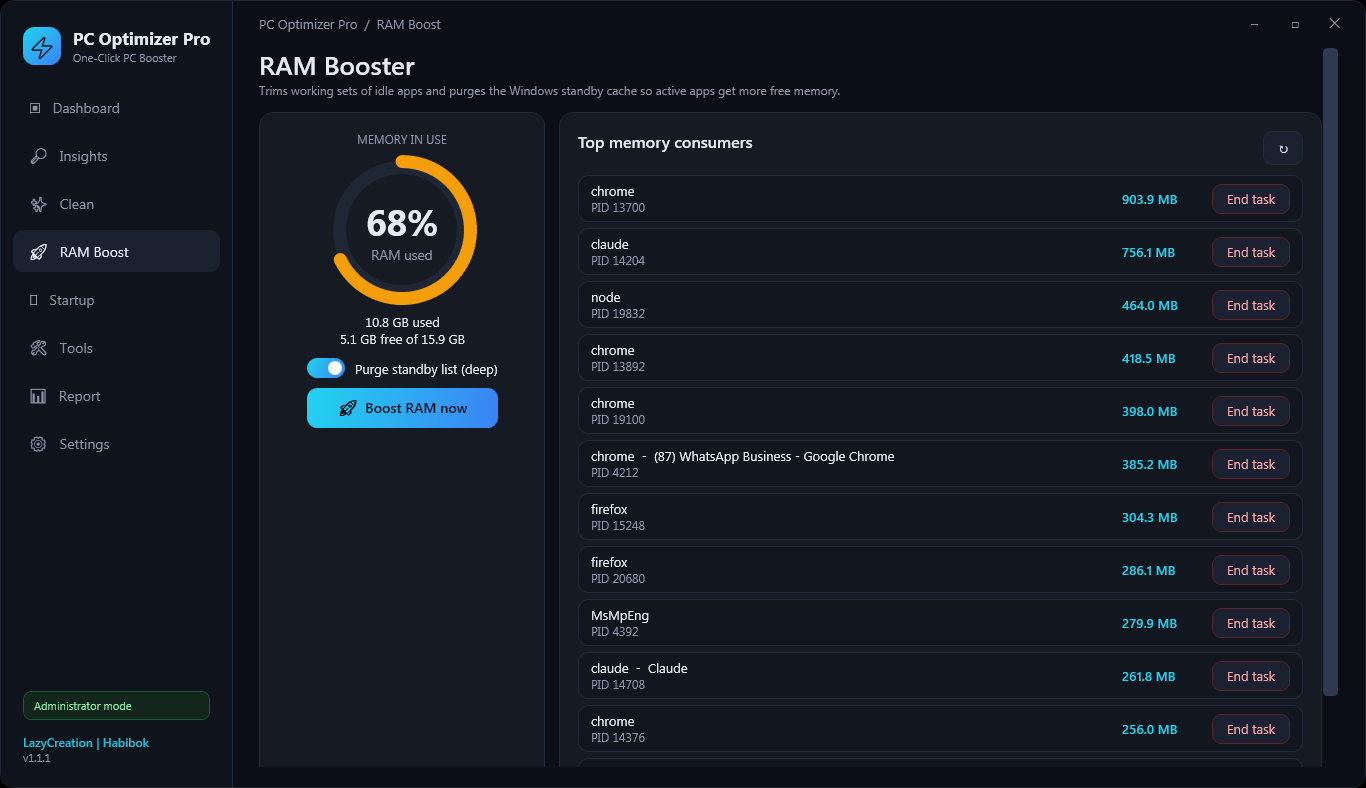
The RAM Booster page shows a MEMORY IN USE ring and the Top memory consumers. 🚀 Boost RAM now trims idle processes; with Purge standby list (deep) ticked it also drops Windows' standby cache. The result line shows how much was freed and how many processes were trimmed. Free RAM rises immediately; some of it comes back as apps reload what they need, which is normal. End task here works like Task Manager and asks for confirmation.
Startup
The Startup Manager lists everything that launches with Windows from the Run keys and the Startup folders, with its command and location (HKCU\Run, HKLM\Run, HKLM\Run (32-bit), User Startup folder, Common Startup folder). Flip the On / Off checkbox; Windows applies it at the next boot. The tool uses the same StartupApproved flag as Task Manager, so nothing is deleted and everything is reversible from here or from Task Manager. Safe rule: disable updaters, chat apps and launchers you open yourself anyway; leave audio, graphics, antivirus and cloud-sync entries on unless you know what they do.
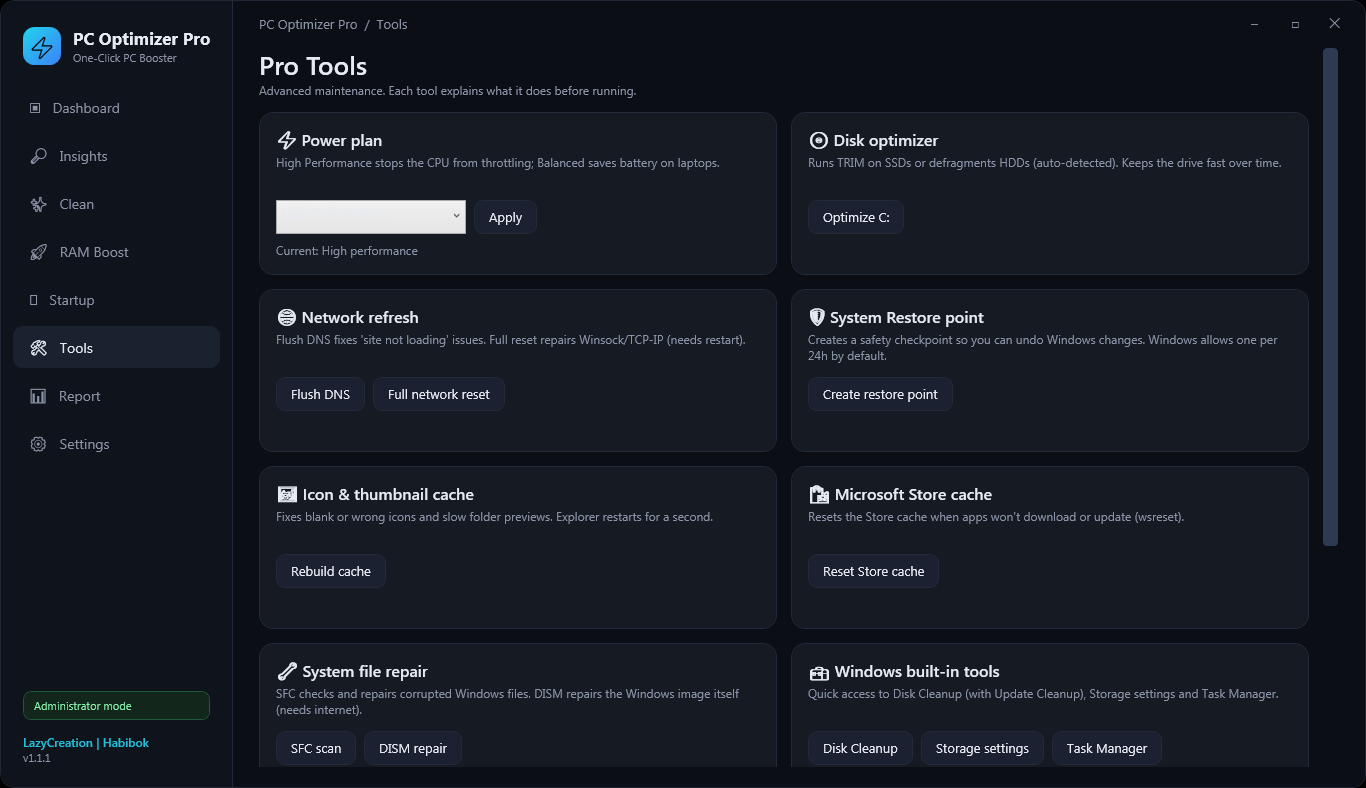
Tools
Pro Tools, one card each. Every tool prints its result in the log at the bottom.
- Power plan — Balanced, High Performance or Ultimate Performance, then Apply. High Performance stops the CPU from throttling; on a laptop it drains the battery faster.
- Disk optimizer — runs TRIM on an SSD or defragments an HDD, detected automatically. Safe; a big HDD takes a while.
- Network refresh — Flush DNS is harmless. Full network reset resets Winsock and TCP/IP, needs a restart and drops custom network settings such as a manual DNS or VPN adapter tweaks. Use it only for real network problems.
- System Restore point — creates a checkpoint. Windows allows one per 24 hours by default.
- Icon & thumbnail cache — Explorer closes and reopens for a second.
- Microsoft Store cache — the standard reset; the Store opens when done.
- System file repair — SFC scan (5–15 minutes) and DISM repair (5–20 minutes, needs internet). Both are the standard Windows repair commands.
- Windows built-in tools — shortcuts to Disk Cleanup, Storage settings and Task Manager.
- Large file finder — Scan lists the 25 biggest files over 100 MB in Downloads, Documents, Videos, Pictures, Music, Desktop and OneDrive. It only shows them; Show in folder opens Explorer. Nothing is deleted.
Report
Reports & History shows the Last boost comparison table and a History list of every recorded boost (date, junk removed, RAM freed, files removed, score before → after). Export HTML report writes the last boost of this session as a styled HTML file with a "What was done" list and your PC details; Open reports folder opens where they are kept.
Settings
Safety: skip temp files modified in the last 24 hours (on), create a System Restore point before deep operations (on), empty Recycle Bin during One-Click Boost (off), run a quick disk speed test in snapshots (on), and the prefetch age in days (30). Auto Boost schedule: Off, Daily at 10:00 or Weekly (Sunday 10:00), then Apply. Save settings writes everything to the settings file.
What it never touches
- Browser data. Profiles, cookies, saved logins, bookmarks, history, extensions and caches of Chrome, Edge, Firefox, Brave, Opera, Vivaldi, Chromium, Yandex, Tor and a dozen more, plus the Internet Explorer cache. Every module skips any path inside a browser folder — the log even says "browser data untouched".
- Your documents. Desktop, Documents, Downloads, Pictures, Videos, Music, OneDrive. The large-file finder reads them; nothing writes to them.
- Your programs. Nothing is uninstalled and no registry entries are removed; Startup only flips the on/off flag Task Manager uses.
- Anything outside the known junk locations. The modules clean fixed folders only (temp folders, Prefetch, WER, Minidump, logs, thumbnail and shader caches, SoftwareDistribution\Download, the Delivery Optimization cache). Symbolic links and junctions are never followed.
Honest expectations
- It frees disk space and RAM, and it shows you the numbers. A PC with 2 GB of junk and 90 % RAM in use will feel the difference; a tidy PC will see a small change, and that is fine.
- It cannot make a slow CPU fast, add RAM or turn an HDD into an SSD. If Insights says "Windows runs on a mechanical HDD", an SSD upgrade will do more than any cleaner.
- It cannot fix a failing disk, a corrupted Windows, overheating or malware. Use SFC and DISM for file corruption and a real antivirus for malware.
- The health score is a simple formula (free RAM, CPU load, free disk, junk size, startup apps, process count). It is a guide, not a benchmark, and the After score is never shown lower than Before.
- Disk speed numbers vary from run to run; only changes above 20 % are coloured.
- Freed RAM partly refills as apps reload what they need. That is Windows working normally.
Auto-Boost schedule
Settings → Auto Boost schedule → Daily at 10:00 or Weekly (Sunday 10:00) → Apply. The tool creates a Windows Task Scheduler task named PCOptimizerPro AutoBoost that runs PCOptimizerPro.exe --auto with highest privileges. The silent run does the full One-Click Boost with your current module ticks and settings, without a window, and writes a log and an HTML report to %APPDATA%\PCOptimizerPro. It does not empty the Recycle Bin unless that Settings option is on.
The task points to the exe where it was when you pressed Apply. Before moving or deleting the file, set the schedule to Off → Apply, or delete the task in Task Scheduler. The PC must be on at the scheduled time.
Privacy
- Runs offline. The tool never connects to the internet, checks for updates or sends anything anywhere. Nothing is sent to LazyCreation. The only exceptions are two standard Windows actions you trigger yourself: DISM repair asks Windows to fetch repair files, and the Store cache reset opens the Store app.
- What it writes:
%APPDATA%\PCOptimizerPro\settings.ini(your ticks and options),history.csv(one line per boost),Reports\(exported HTML reports) andLogs\(one text log per day) — plus the scheduled task and System Restore points if you enable them. - What a report contains: your device model, Windows build, CPU, RAM, disk type and the before/after numbers. No user names, serial numbers or file names.
- No telemetry, no account, no ads, no bundled software.
Troubleshooting
The antivirus flags or quarantines the exe. The tool is unsigned, and it stops and starts Windows services and trims process memory — behaviours some antivirus heuristics dislike. Restore the file from quarantine, add it to the exclusions, and compare the SHA-256 on this page with the file you downloaded.
"The requested operation requires elevation", the window does not open, or the sidebar says "Limited mode (not admin)". You clicked No on the prompt or your account is not an administrator. Right-click PCOptimizerPro.exe → Run as administrator → Yes, or ask the PC's administrator to run it.
"PC Optimizer Pro is already running." Only one window can be open. Check the taskbar, or end PCOptimizerPro.exe in Task Manager.
Many files "skipped (in use)". Normal. Open programs lock their temp files, and files modified in the last 24 hours are skipped on purpose. Close programs, restart Windows and run again if you want them gone.
"Could not stop wuauserv / bits / DoSvc". Windows was installing an update. Let it finish and run again; the other modules still worked.
Windows Update looks stuck after a clean. The Windows Update and Delivery Optimization services are stopped during cleaning and started again. If Windows Update shows an error afterwards, press "Check for updates" or restart Windows.
The health score hardly moved. The PC was already clean, or the slowdown is CPU, disk or hardware — check Insights.
"System Restore is disabled on this PC". Turn on System Protection for the Windows drive, or untick the restore-point option in Settings.
Ultimate Performance "not available". Some Windows editions do not include it; use High Performance.
Auto-Boost did not run. The PC was off or asleep at 10:00, or the exe was moved. Open Task Scheduler and check the PCOptimizerPro AutoBoost task, or re-apply the schedule.
Uninstall
- Settings → Auto Boost schedule → Off → Apply (or delete the task PCOptimizerPro AutoBoost in Task Scheduler).
- Close the tool and delete
PCOptimizerPro.exe. - Delete the folder
%APPDATA%\PCOptimizerPro(paste that into the Explorer address bar) unless you want to keep the reports and history.
Nothing else was installed. Startup items you disabled stay disabled until you turn them back on here or in Task Manager.
FAQ
Does it delete browser data? No, never. Browser folders are excluded by every module.
Is it safe to run every day? Yes with the default ticks. The deep and optional modules stay off until you turn them on.
Why does it need administrator rights? To clean system folders, to stop and restart the update services for their cache, and to purge the standby list.
Does it need the internet? No. It works fully offline.
Will it make games faster? It frees RAM and disk; it does not change graphics settings. Leave "GPU driver shader caches" off, otherwise games rebuild the cache and stutter briefly.
Can I undo a clean? Deleted temp files are gone (they were junk). Startup changes, the power plan and everything in Tools are reversible; deep operations get a restore point first.
Does it work on Windows 7 or 8? No. Windows 10 and 11, 64-bit.
Does it replace an antivirus? No. It does not scan for malware at all.
Can I run it from a USB stick? Yes, it is portable. Settings and reports still go to the %APPDATA% folder of the PC it runs on.
Can I see what it did? Yes: the log on the Clean page during a run, the "What was done" list in the HTML report, and the daily log file in Logs.
Changelog
v1.0.0 (2026-10-04) — First public release: One-Click Boost with Before vs After report, Smart Cleaner with 18 modules and Browser Shield, Insights diagnosis, RAM Booster, Startup Manager, Pro Tools, HTML reports with history, Auto-Boost schedule and silent --auto mode.